
Choosing a trifold laptop screen extender starts with your workday: which information needs to stay visible, where you work, and what your laptop can actually connect to. A folding design may look convenient in a product photo, but the useful comparison is between specific models and complete setups.
Use this checklist when comparing a folding extender, a single slide-out display, or a standalone portable monitor. Keep the same laptop and working surface in mind throughout. Product names alone do not establish the number of independently usable screens, the connection requirements, or whether a setup will fit your bag.
Start with the windows you need to keep visible
Write down one task you perform often, then list the windows you consult while doing it. For example, you might edit a spreadsheet while checking a reference document and keeping a message thread available. Decide which items need a permanent view and which can share a screen. Three open applications do not automatically mean you need three physical displays.
Next, check each product's stated physical screen count, excluding your laptop's built-in display. Confirm whether the intended connection lets those screens extend your desktop independently or mirror the same image. Ask for a connection diagram for your exact computer if the listing leaves this unclear. This gives you a more useful starting point than comparing names such as trifold or triple screen.
- List the windows that must remain visible during your main task.
- Separate the extender's screen count from the total including your laptop.
- Confirm extended-desktop behavior for the connection you plan to use.
Draw the complete connection path
Make a simple connection list: laptop port, cable, any adapter or dock, and the display input. Then add the required power connection. A connector that physically fits is not sufficient evidence that the whole setup supports the display mode you want.
Microsoft's USB-C troubleshooting guidance calls for compatible features across the computer, display, and cable. DisplayPort's guidance describes video over USB-C through supported Alternate Mode connections. For a model that uses this path, check the relevant laptop specification and the display manufacturer's cable instructions. If the model instead requires another connection method or software, verify those requirements separately. Do not assume a single USB-C connection will drive every panel on every extender.
- Identify the exact port you intend to use, not just the laptop's general port list.
- Check which cables and adapters are included and which you must supply.
- Keep video, charging, and any required software as separate checklist items.
Check the computer model and external-display limits
Look up your exact laptop model, including its processor or chip variant, before accepting a broad compatibility statement. Record your operating system and the resolution and refresh rate you plan to use. If a dock is involved, check its documentation as well as the laptop's specifications.
For Mac users, Apple's display guidance explains that supported external-display configurations depend on the Mac model and the displays' resolution and refresh rate. Use the model-specific specifications linked from that guidance. A statement that a product works with macOS is less useful than a documented connection plan for your particular Mac. Windows users should likewise check their computer manufacturer's specifications and the display's stated requirements.
- Save the computer's exact model identifier with your comparison notes.
- Ask whether your intended setup requires drivers or other software.
- Confirm your preferred arrangement before ordering, including use of the built-in screen.
Measure the working setup, including its support
Measure the usable width and depth of the surface you actually work on. Allow room for the laptop, the display's support or stand, cable routing, and the items you use beside the keyboard. Compare those measurements with the exact model's deployed dimensions. A desk photo taken from an angle is not a reliable size comparison.
For an attached design, read the mounting instructions and supported laptop dimensions. Check how the manufacturer expects the setup to be supported instead of assuming the laptop lid carries the entire load. For a standalone display, include its stand position in your measurements. Follow the manufacturer's folding and storage instructions; do not force a mount or hinge to make a setup fit.
- Compare deployed dimensions as well as folded dimensions.
- Check the mounting method, support requirements, and permitted laptop sizes.
- Leave usable space for your mouse or other everyday tools.
Compare the complete travel kit and power plan
Build a packing list for each option: display, required stand or mounting parts, cables, adapters, charger, and protection for transport. Compare the published measurements and weights of the complete kits. A format name does not prove that one kit will be lighter or smaller than another, especially when different models use different accessories.
Read the display's power requirements and decide where power will come from during your normal work session. Check whether your proposed charger and cable arrangement meets the manufacturer's instructions. Avoid treating the number of panels as a battery-runtime estimate. If unplugged use matters, look for relevant model-specific information and test your actual setup within the seller's applicable return terms.
- Check the packed kit against your bag's usable compartment dimensions.
- Include accessories when comparing cost and carried weight.
- Review current return conditions, including any setup or packaging requirements.
Compare two realistic working situations
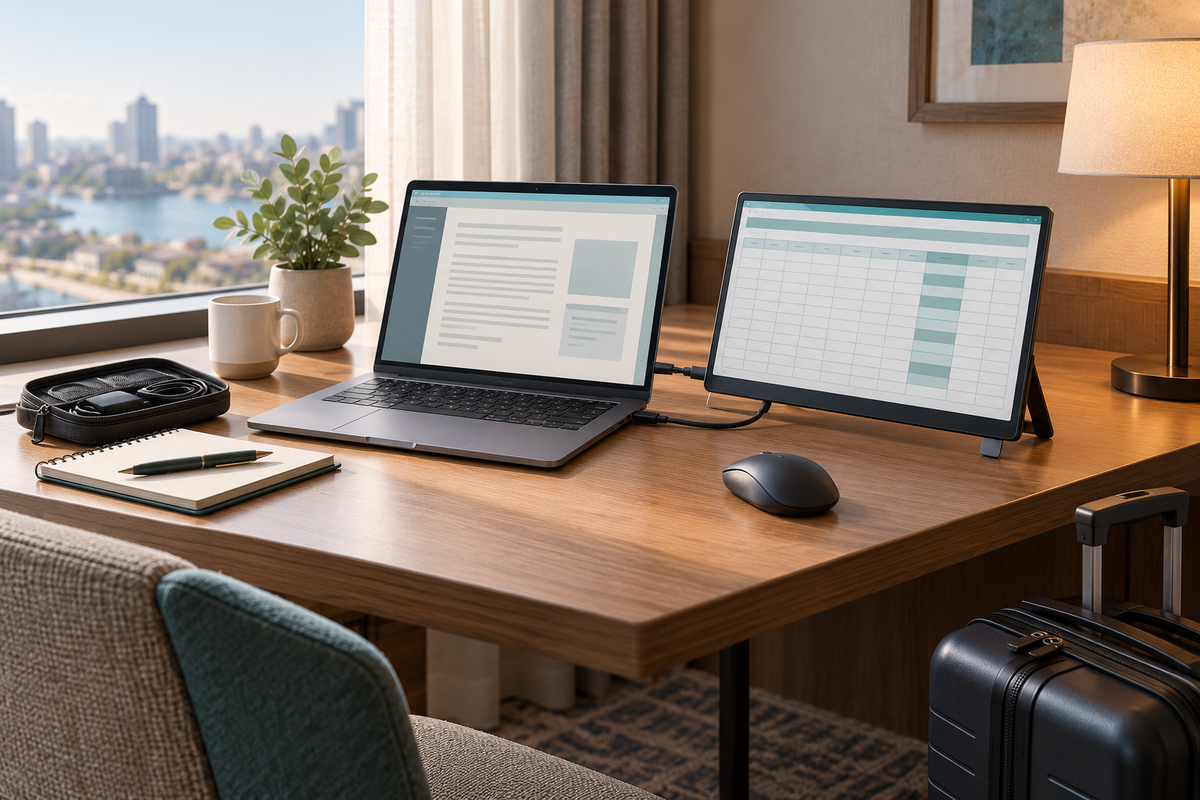
Consider a hypothetical consultant who works on a document while referring to a dashboard. At a regular desk, she can compare each candidate's measured footprint with the space available. At a smaller cafe table, she should repeat that measurement rather than assume a particular design will fit. If using only part of a multi-panel setup is essential, she should confirm that the specific model supports that arrangement.
Now consider a developer who mainly wants reference material beside the code editor. He can first try that window arrangement on his existing screen, then decide what an additional display would change. If he regularly switches computers, he should verify the connection plan for each machine. These checks may favor different products; the useful choice is the one that supports the actual tasks and locations without unresolved fit or connection questions.
- Evaluate the smallest workspace you regularly use, not only your main desk.
- Do not assume partial-panel operation or compatibility with a second computer.
- Keep a short list of unanswered questions to send to the seller.
Before you choose
Before choosing a trifold laptop screen extender, confirm the screen arrangement, exact laptop compatibility, complete connection path, working footprint, and packed kit. Compare those same items for slide-out and standalone options. Choose when the required setup is documented and fits your routine, rather than relying on a format label or a universal compatibility promise.
Explore Flexpire Fourz 15.3 inches Triple Screen and review the current product details and setup information for your laptop before ordering.

Leave a comment
This site is protected by hCaptcha and the hCaptcha Privacy Policy and Terms of Service apply.